A free Chrome extension that checks every site you visit for phishing, scam and spam signals, and turns its shield green, amber or red. Instantly.
Add to Chrome — Free How it worksScammers rely on a handful of tricks. This extension knows all of them.
Fake PayPal, Amazon or bank pages hosted on look-alike addresses like
paypal.com.account-verify.tk.
Catches gooogle, paypa1, amaozn, rnicrosoft —
even Cyrillic letters disguised as English ones.
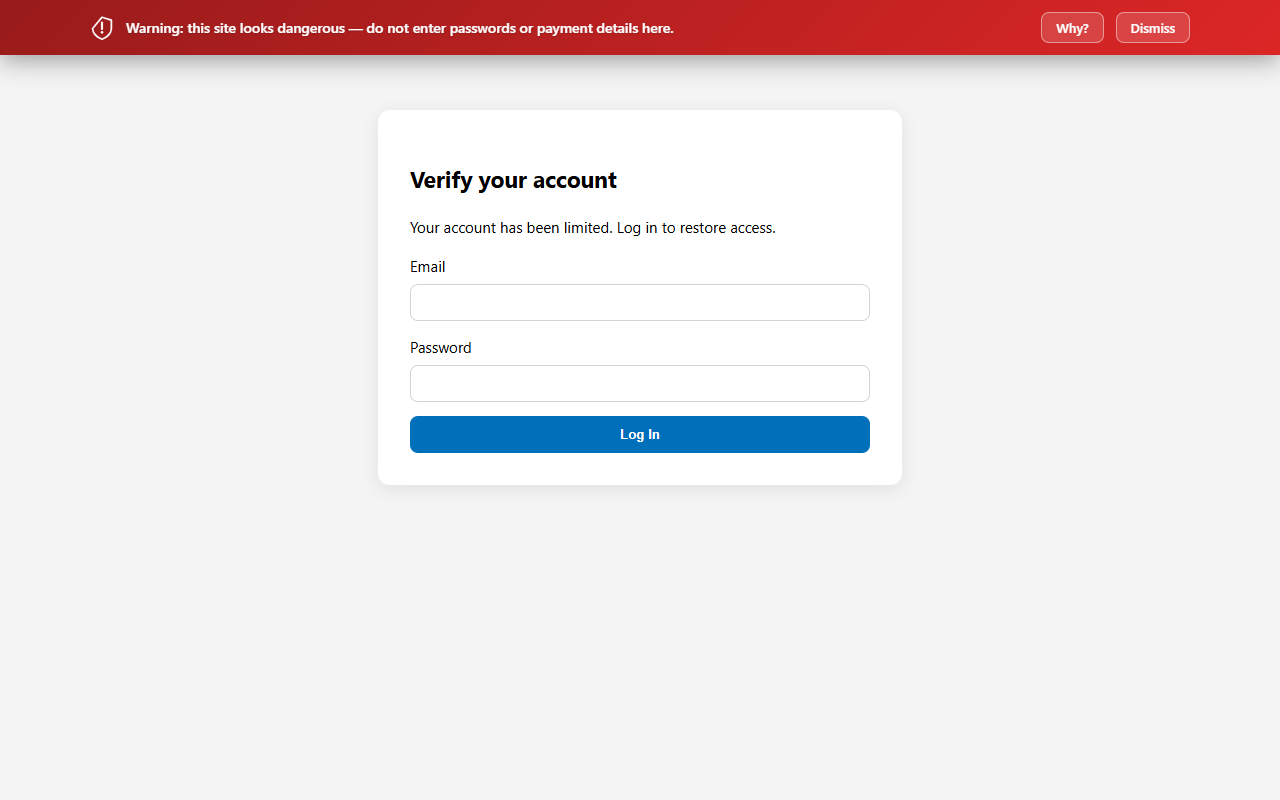
Dangerous pages get a clear red banner with plain-language reasons — before you enter a password or card number.
"verify-account", "free-prize", "refund" hostnames on throwaway domain endings like .tk and .icu raise the score.
Password forms on unencrypted pages, forms that submit your data to a different website, deceptive links, hidden frames.
Everything runs inside your browser. Zero network requests, zero data collection, no account needed.
One click from the Chrome Web Store. No sign-up, no settings needed.
Every page is scored locally against 25+ phishing signals — reputation, brand imitation, URL structure, bait words and page content.
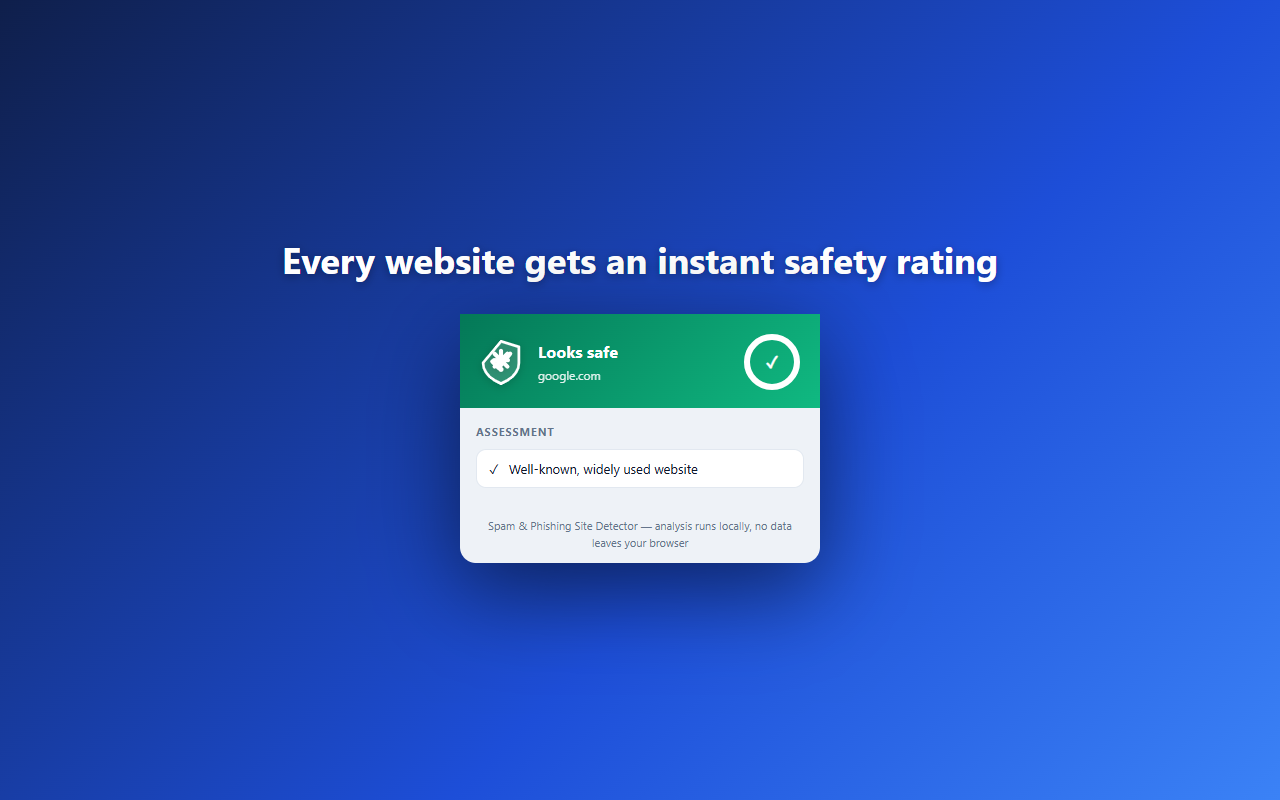
Green means no warning signs, amber means be careful, red means stop — with a banner explaining exactly why.
Available now on the Chrome Web Store — free, no account needed.
Click "Add to Chrome", confirm, and the shield appears next to your address bar.
chrome://extensions and turn on Developer mode.Free guides — five minutes each, no jargon.
The checklist to run through before you trust any page.
Typosquatting, homoglyphs and punycode — explained simply.
Before the "80% off" deal empties your card.
The 7-step damage-control plan, in order.
Tools anyone can use — no tech skills needed.
The "request money" trick, QR swaps, fake cashbacks and more.
Fake parcels, KYC scares and too-good job offers on SMS.
The 30-second habit that beats one wrong click.